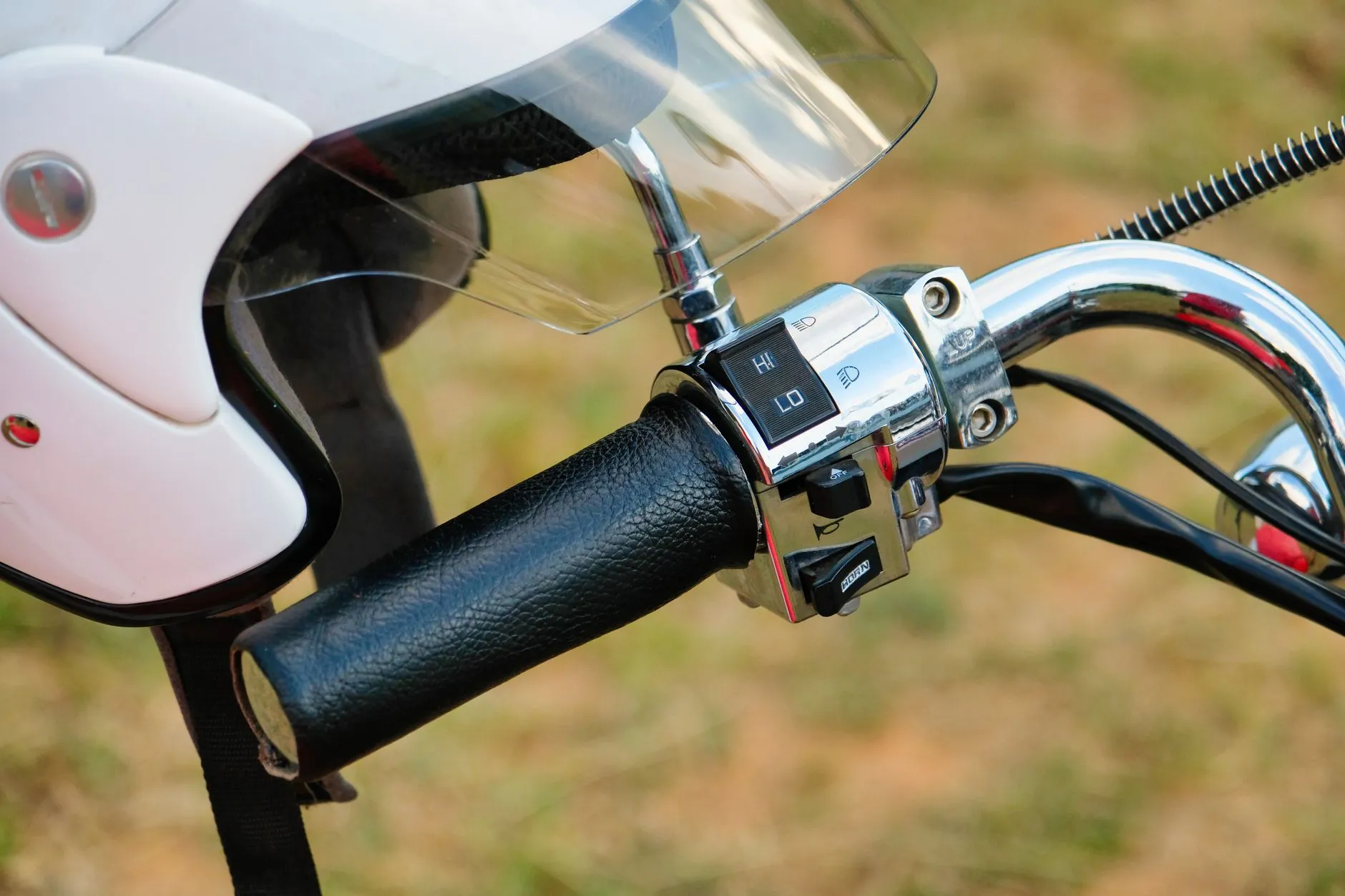
The Card You Hope Nobody Reads
Nobody plans on going down. But if it happens, the people who get to you first have questions you may not be able to answer: who to call, your blood type, what you are allergic to, whether you are diabetic or on a blood thinner. Emergency ID is how you answer them ahead of time.
It is a medical card that lives on District 76. A QR code, an NFC tag on your helmet, a card in your wallet or an image on your lock screen gets a first responder to it. You choose what it shows, everything you enter is encrypted when it is saved, and you are told every time it is opened.
We just rebuilt it from the ground up. Here is how it works, start to finish.
Setting Up Your Card
Your card lives in Settings, under Emergency ID. It takes about five minutes, and you only fill it in once.
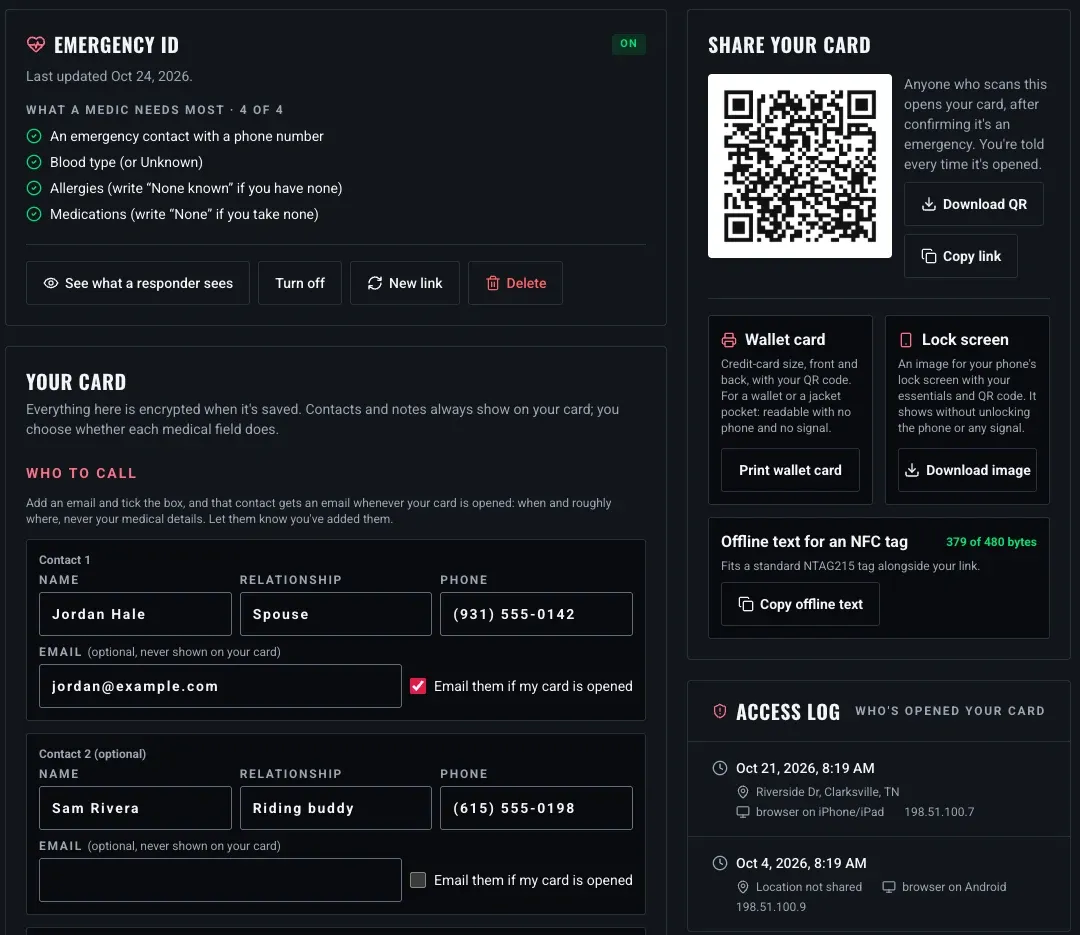
Your Emergency ID in Settings: the status of your card up top, everything you need to share it on the right, and the form below. Every name and number here is made up.
Who to Call
Add up to three emergency contacts, each with a name, a relationship and a phone number. On your card, every contact gets a big Call button, so a stranger can reach them in one tap.
Each contact can also have an email address. Tick Email them if my card is opened and that person gets an email whenever your card is opened, saying when and roughly where. The email never includes your medical details, and they get at most two an hour. The email address is never shown on your card. Let your contacts know you have added them, so the email doesn't come out of nowhere.
Medical Details
Then the details a medic asks first:
- Blood type, picked from a list (or Unknown).
- Allergies: medications, foods, latex, stings. If you have none, write "None known", so a medic knows you thought about it.
- Medical conditions: diabetes, epilepsy, a heart condition, a pacemaker or implant, a past head injury.
- Medications, especially blood thinners and insulin. Write "None" if you take none.
- Insurance: provider and policy number. It's hidden from your card by default.
- Notes: anything else a responder should know, like contact lenses or a language you speak.
Each medical field has its own Show on card box, so you decide exactly what a responder sees. Your name, your contacts and your notes always show, because without them the card can't do its job.
The status card at the top keeps score with a short checklist of what a medic needs most: a contact with a phone number, a blood type, allergies, and medications. If your card hasn't been touched in six months, it will remind you to give it a look. Phone numbers and medications change.
See What a Responder Sees
Tap See what a responder sees and you get your card exactly as it looks to whoever opens it. A preview isn't logged and doesn't alert you, so check it as often as you like.
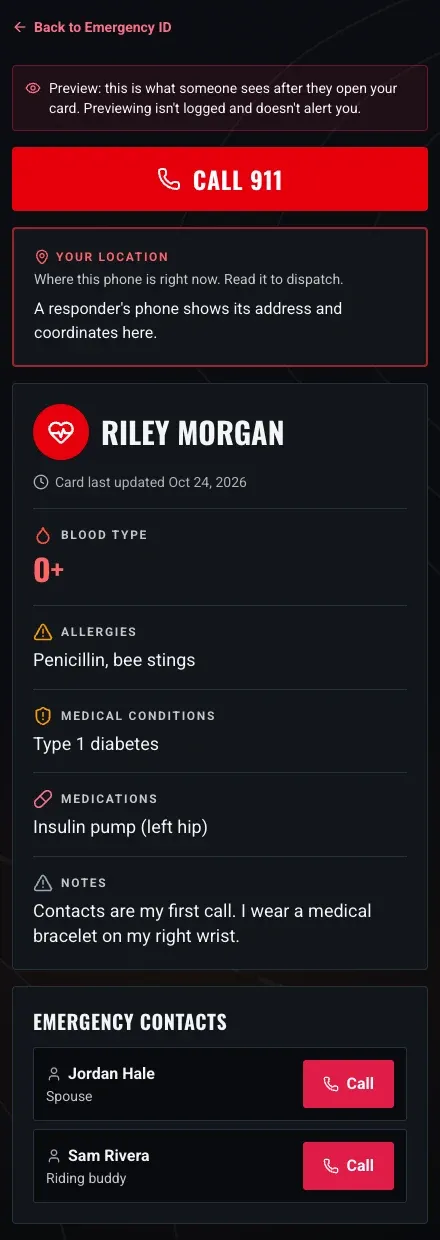
What a responder sees: Call 911 first, where they are, then the rider's details and one-tap calls to their contacts.
At the top is a big Call 911 button. Under it, Your location shows where the responder's phone is right now, with an address and coordinates they can read straight to dispatch. Then come your name, when the card was last updated, the medical details you chose to show, and your contacts.
Sharing Your Card
A card only helps if someone can find it. The Share your card panel gives you several ways to carry it, and they all lead to the same always-current card.
The QR Code
Your card has its own QR code. Download it and put it where a responder will look: a sticker on your helmet, on your bike, or inside your jacket. Any phone camera can scan it, with no app, gloves or not.
The Wallet Card
Print wallet card gives you a card at true credit-card size, front and back, ready to cut out.
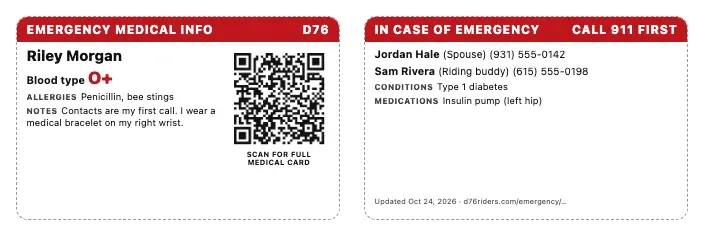
The wallet card. The front has the essentials and your QR code. The back has who to call. Print it at 100%.
The front has your name, blood type, allergies and the QR code. The back has your contacts, conditions and medications. It only uses what you chose to show, and it works with no phone and no signal. Reprint it whenever you update your card; the date on the back shows how current it is.
The Lock Screen
Download image makes a wallpaper for your phone's lock screen, with your essentials, your contacts and your QR code. Anyone can read it without unlocking your phone, and it needs no signal. Set it as your lock screen, not your home screen. The top is left clear for the clock.
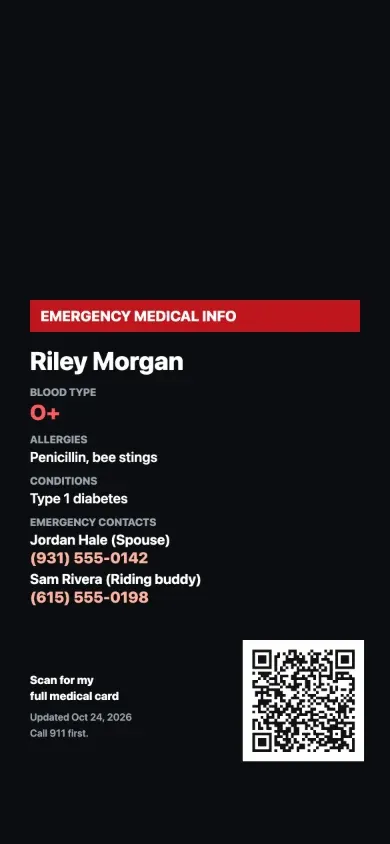
The lock-screen image: readable on a locked phone, with no signal.
An NFC Tag
A cheap NFC sticker on your helmet can carry your card too. A tap on most phones opens it with no app. The settings page walks you through writing one, step by step: one record with your card's link, and one with a short offline text of the life-critical basics that can be read even with no signal. A meter shows how much of the tag your offline text uses, so you know it will fit a standard NTAG215 tag.
Know what is gated and what isn't. Only your card's link is behind the emergency screen, logged, and alerted. The offline text on a tag is plain text: anyone who reads the tag with an NFC app can see it, and nobody is told. The same goes for anything printed or on your lock screen: the wallet card and the lock-screen image can be read by whoever is holding them. Put only what you are comfortable with a stranger seeing in those, and leave the rest to the link.
When Someone Opens Your Card
Scanning your QR code or opening your tag's link doesn't show your medical details straight away. First comes a screen saying the card holds medical information for emergency use only, and that opening it is logged and you will be told.
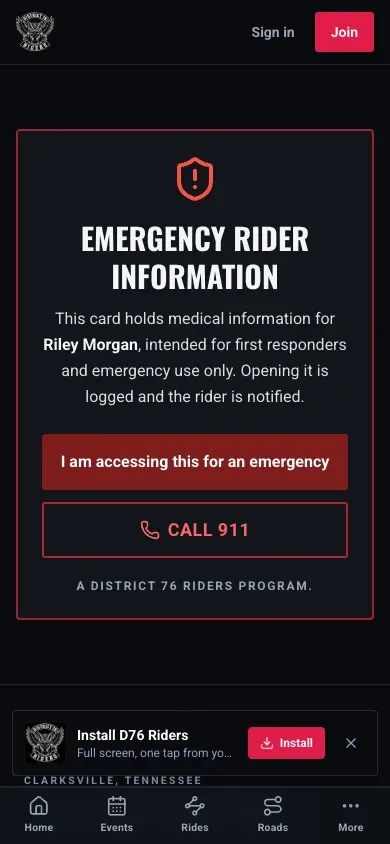
The first screen: Call 911 is right there, and the medical details only load after "I am accessing this for an emergency".
Your details only leave our servers once someone taps I am accessing this for an emergency. At that moment:
- The opening is logged with the time, the device, and where the phone was if they shared their location.
- You get an alert by notification and by email. That alert can't be switched off, because knowing your medical info was read is not a preference.
- The contacts you ticked get an email saying when and roughly where.
Every opening shows up in your Access log, next to your card in Settings, with when it happened, roughly where, and on what kind of device. If an opening wasn't you and wasn't an emergency, make a new link.
Rider Down
On a group ride, the organizers, or a rider checked in to the ride, can raise a Rider Down alert when someone goes down, and every organizer is told at once. You can now let those organizers open your card from that alert, so the people already standing next to you can see your medical details and call your contacts.
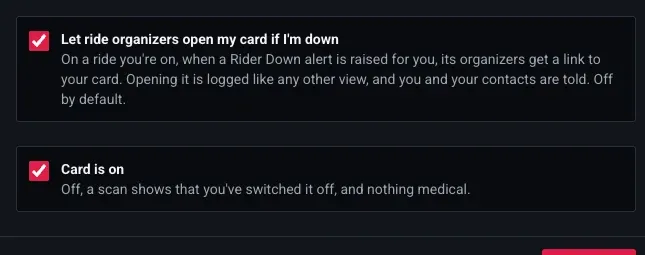
Both switches sit at the bottom of the form. The Rider Down one is off until you turn it on.
It's off by default, and it only covers rides you are on. When it's on and a Rider Down alert is raised for you, the ride's organizers get a link to your card. Opening it is logged like any other opening, and you and your contacts are told.
You Stay in Control
- Turn off stops your card from showing anything. A scan just says it has been switched off, and nothing medical. Turn it back on any time.
- New link replaces your card's link. Your old QR codes, wallet cards and NFC tags stop working, so reprint and rewrite them.
- Delete removes your card and its access log for good.
Set Yours Up Before the Next Ride
Five minutes now could save the people helping you a lot of guessing later. Open Emergency ID in Settings, fill in who to call and what a medic needs to know, preview it, then put the QR code somewhere a responder will find it. To learn more first, read how Emergency ID works.
Not a member yet? Join District 76. It's free, and Emergency ID comes with it.
Ride what you ride. Rep who you rep. Respect everyone. And ride home.
Finish this story. It's free
Create your free District 76 account to read the rest, save articles, and join the discussion.
Already a member? Log in

@worlddrknss
I’m basically a walking collection of expensive hobbies and a complete absence of free time!
Roads worth riding
Community-rated routes from the D76 road guide.
- Old Lock B Boat Rampin TN
- FS141 to Persimmon Pointin KY
- Fort Donelson Ride Outin TN
- Natchez Trace Parkway (TN)in TN
0 Comments
Sign in to join the discussion.
- No comments yet. Be the first to weigh in.